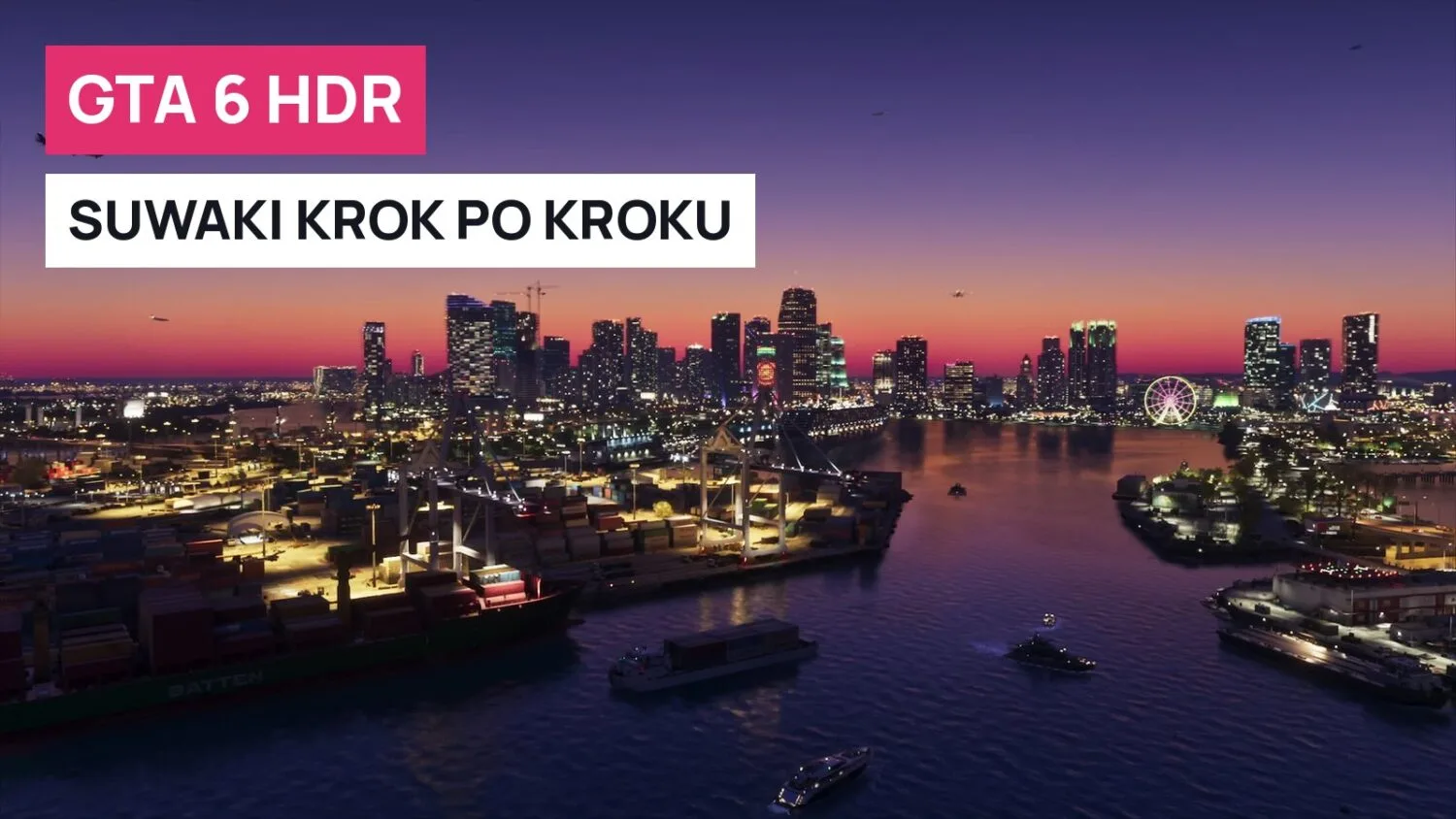
You set up GTA 6 HDR in the game itself: from the pause menu go to Settings, the Display tab and the HDR Calibration entry. HDR, i.e. an image with an extended range of brightness, is calibrated there with three sliders: Max Brightness, Paper White and Black Levels. According to Vincent Teoh of HDTVTest, the game bypasses the HDR calibration set in the PS5 and Xbox system. Below are the steps for PS5, PS5 Pro and Xbox Series X|S, plus the values worth starting from.
At a glance
- HDR calibration is in Settings > Display > HDR Calibration. Paper White and Black Levels default to 50.
- According to Vincent Teoh of HDTVTest, the game ignores the system HDR calibration on PS5 and Xbox. Rockstar has not confirmed this.
- The sliders affect each other: lowering Paper White also lowers the real peak brightness. Both measurement sources agree on this.
- Recommendations for Paper White differ: HDTVTest advises 35, HDR Game Analysis 40 to 50. Check your chosen set in the game, both day and night.
- The measurements come from the first days after launch and may change after a patch.
Step 1: TV and console settings
Before you go into the game, prepare your TV. The French site JV France advises turning on game mode and turning off motion smoothing, power-saving modes and the ambient light sensor. It also recommends HGiG, a mode in which the game, not the TV, adapts bright highlights to what the screen can do. On Sony TVs, which often lack this option, the same site suggests turning off HDR tone mapping in the brightness settings.
On PS5 and PS5 Pro, make sure HDR is turned on in the system settings (Settings, Screen and Video, Video Output, HDR). On Xbox Series X|S, the HDR calibration tool for games is in Settings, General, TV & display options. You can run that calibration because it will help in other games, but according to HDTVTest GTA 6 doesn't take it into account, so the in-game sliders decide the picture. We give the console menu names as reported by JV France; in your system's language they may be worded slightly differently.
Other picture options, such as motion blur, are covered in our guide GTA 6 settings. On every console the game targets 30 fps (frames per second), as we explain in our article GTA 6 60 FPS.
Step 2: where HDR calibration is in GTA 6
Open the pause menu and go to Settings, then the Display tab. Choose HDR Calibration. According to JV France, the game shows three test images: a white logo on black, a boat scene in daytime and a boat scene at night, and you switch between them with the R1 button on PS5. The sources don't give the button on Xbox.
GTA 6 HDR settings: what each slider does
| Slider | What it's for | Notes |
|---|---|---|
| Max Brightness | The brightest points in the image, e.g. the sun and street lamps | Set it to your TV's real peak brightness in nits (a nit is a unit of screen brightness). HDR Game Analysis advises using the small-window measurement for OLED, 2 to 3% of the screen, and for LCD the highest value at any window size. You can find the data in, for example, RTINGS reviews. |
| Paper White | The overall brightness of day and night, the interface and midtones | Default 50. According to HDR Game Analysis, lowering it by 5 points dims the entire image by about 17% and lowers the peak. |
| Black Levels | How deep the black is and the lower shadows | Default 50, which according to HDR Game Analysis gives about 0.034 nits. At 15 it's about 0.001 nits. |
The key point is that the sliders are linked. According to HDR Game Analysis measurements, at Paper White 50 a Max Brightness setting of 1000 gives about 960 nits. At Paper White 35 the same slider gives about 620 nits, and at 25 about 470. Paper White above 50 no longer raised the peak (tested up to 2000 nits). That's why, after lowering Paper White, you should raise Max Brightness, even above your TV's brightness.
Recommended values according to sources
Rockstar has not published any HDR recommendations. The values below come from independent analysts and are a starting point, not a rule.
| Situation | Max Brightness | Paper White | Black Levels | Source |
|---|---|---|---|---|
| Game default | not confirmed (JV France gives 600) | 50 | 50 | HDR Game Analysis, HDTVTest |
| Screen of 1000 nits or brighter, dark room | 2000 | 35 | 20 | Vincent Teoh, HDTVTest |
| OLED, dark room | the screen's real peak, higher after lowering Paper White | 40 to 50 | 15 (or 30 for better shadows) | HDR Game Analysis |
| Screen above 2000 nits | the screen's real peak | 55 | no separate recommendation | HDR Game Analysis |
| Bright room or cheaper LCD | the screen's real peak | 40 to 50 | 50 | HDR Game Analysis |
The sources differ on Paper White. According to HDTVTest measurements, the default 50 gives midtones that are too bright: interface white is about 350 nits instead of the roughly 203 recommended for a dark room. HDR Game Analysis, on the other hand, notes that many players choose 35, but that darkens nights and interiors heavily, and advises trying 40, 45 and 50.
On Max Brightness the conclusions are similar. Teoh measured that at Max Brightness 1000 and Paper White below 50 the in-game sun only reaches about 600 nits, which is why for a 1000-nit screen he advises setting 2000. HDR Game Analysis measurements also show a drop in the peak after lowering Paper White, so in both cases you then need to raise Max Brightness.
How to set Black Levels yourself
The method comes from Vincent Teoh. Turn off the lights in the room, set Black Levels to 0, hide the interface and let your eyes adjust to the dark. Slowly raise the slider until the checkerboard background becomes barely visible. On his reference monitor Teoh arrived at 20, but on a different screen the result will differ.
HDR Game Analysis warns against raising black heavily just to brighten nights, because blacks will turn gray. Paper White has the strongest effect on dark nights, so it's better to raise it and accept a brighter day.
The most common HDR problems and how to fix them
- Washed-out image, gray blacks. Lower Black Levels to between 15 and 20. That is what HDR Game Analysis (for OLED) and Teoh advise, respectively. The default 50 lifts blacks.
- Flat image, glaring interface. Lower Paper White, e.g. to 35, as HDTVTest advises, and raise Max Brightness.
- Nights and interiors too dark. Raise Paper White to 45 or 50. Lowering Paper White also darkens shadows.
- Lights look unnatural at night. According to HDR Game Analysis, many light sources are pushed up to peak brightness. Lower Max Brightness by about 20% or to a value that looks natural.
- Changing it does nothing. After every Paper White change, check Black Levels again, because the sliders interact.
- Still too dark. Check the power-saving modes and ambient light sensor on your TV, and compare HGiG with tone mapping turned on.
We describe the differences between consoles in our article GTA 6 PS5 or Xbox. You can find other guides on the GTA 6page.
Frequently asked questions
How do you set up HDR in GTA 6?
Turn on HDR in your console's system settings, then in the game go to Settings, Display, HDR Calibration. Set Max Brightness according to your TV's brightness, choose Paper White and finally Black Levels.
Is HDR calibration on PS5 or Xbox enough?
According to HDTVTest, no, because GTA 6 ignores the system calibration. Rockstar has not confirmed this, so do both, and set the final picture with the in-game sliders.
What are the default HDR settings in GTA 6?
Paper White and Black Levels default to 50. JV France gives a default Max Brightness of 600, citing other guides, but sources with measurements don't confirm this value.
Do Xbox and PS5 have different in-game HDR settings?
We found no differences in the sliders in the sources. HDR Game Analysis measurements were made on PS5 Pro, and the author expects the same on PS5 and Xbox.
Why is the image too dark after lowering Paper White?
Paper White lowers the brightness of the whole image, including shadows and the peak. Raise it to between 40 and 50. A higher Max Brightness will restore bright highlights and slightly brighten midtones, but for dark nights, according to HDR Game Analysis, Paper White has the strongest effect.