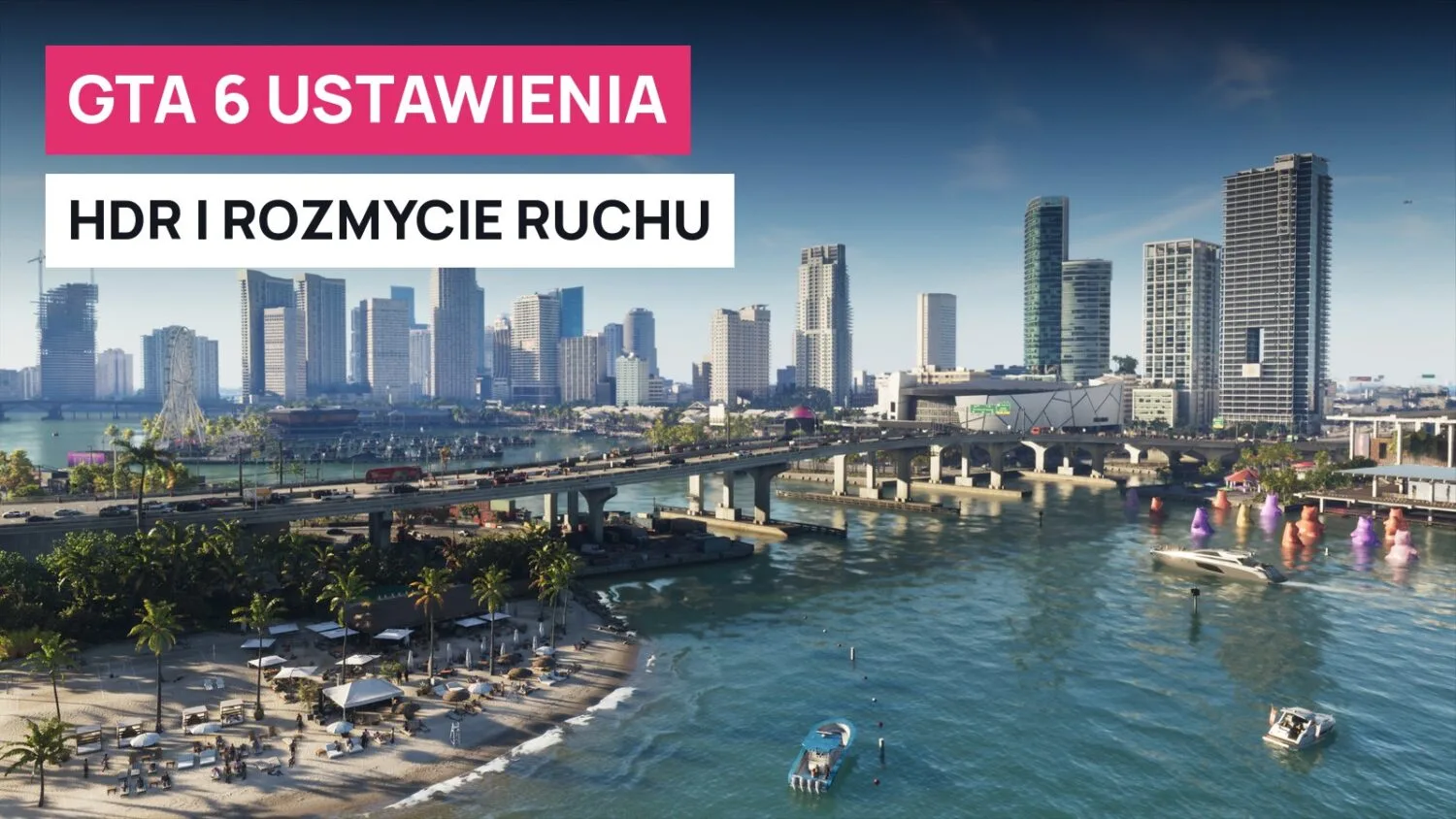
The most important picture settings in GTA 6 are motion blur and HDR calibration. To turn off blur, go to Settings > Display and set the Motion Blur Strength slider to 0 (the default is 3). HDR has to be calibrated in the game itself, because according to HDTVTest's testing, the game ignores system-level HDR calibration on PS5 and Xbox. There are no "quality" or "performance" graphics modes: the game runs at 30 fps on every console.
Quick summary
- Motion Blur Strength: a slider in the Display tab, default 3. Setting it to 0 turns off motion blur.
- HDR Calibration has three sliders: Max Brightness, Paper White (default 50) and Black Level. These settings affect the picture more than your console's calibration does.
- For screens rated at 1000 nits or brighter, Vincent Teoh (HDTVTest) recommends: Max Brightness 2000, Paper White 35, Black Level 20.
- There's no 60 fps mode and no quality/performance toggle, not even on PS5 Pro.
- Subtitles are off by default. Polish is one of 12 languages for the interface and subtitles; dialogue is in English.
Where to find the picture settings
Open the settings from the pause menu. Switch tabs with R1/RB. Picture settings are mostly in the Display and Camera tabs, while subtitles and interface elements are in the UI tab.
The Display tab includes HDR, HDR Calibration, Safe Zone and a Visual Effects group with Motion Blur Strength, Dismemberment, Blood & Gore Intensity, Flashbang, Focus Trail Colorblind Mode and Brightness Reduction. We list the names as they appear in the English version of the game.
You won't find a resolution option or a performance mode in the menu. Resolution and upscaling are fixed for each console, as we explain in our guide GTA 6: PS5 or Xbox.
Motion blur (Motion Blur Strength)
The Motion Blur Strength slider sits roughly halfway down the Display tab, under the visual effects heading. The default value is 3 on a scale of up to 10. Setting it to 0 turns the effect off completely, and higher values make it stronger.
The slider only affects blur from camera and vehicle movement. Background blur (depth of field) is a separate effect that can't be turned off in the menu.
So what should you pick? Guides differ. At 30 fps, a little blur masks the choppiness during fast camera turns, so some writers leave it at 1–2. If blur hurts readability or makes you feel queasy, set it to 0. If you're prone to motion sickness, it's also worth turning off Camera Shake in the Camera tab.
HDR calibration: three sliders
You'll find the HDR Calibration screen in the Display tab. It has three sliders:
- Max Brightness: the brightest point in the image, e.g. the sun and reflections.
- Paper White: the overall brightness of the image, including the interface and midtones. Default 50.
- Black Level: the level of blacks and shadows. Default 50, according to HDR Game Analysis measurements.
The most important finding comes from Vincent Teoh of the HDTVTest channel. According to his testing, the game ignores the HDR settings saved in the PS5 and Xbox Series system software, so only the in-game calibration determines the final picture. Teoh flatly calls it "broken": with Max Brightness set to 1000, the in-game sun reached about 600 nits, and interface white at the default Paper White of 50 came in at about 350 nits instead of the recommended roughly 203.
For TVs and monitors with a brightness of 1000 nits or more, Teoh recommends:
| Slider | Default | HDTVTest recommendation (1000+ nit screens) |
|---|---|---|
| Max Brightness peak brightness | not clearly stated | 2000 |
| Paper White white brightness | 50 | 35 |
| Black Level black level | 50 | 20 |
Sources differ on peak brightness
HDR Game Analysis measured the game on PS5 Pro with different results. According to the site, at Paper White 50 the game reaches almost exactly what you set in Max Brightness, e.g. about 960 nits at a value of 1000. However, lowering Paper White also lowers the peak: at Max Brightness 1000 and Paper White 35 you get about 620 nits, and at 25 about 470 nits. Paper White values above 50 don't raise the peak.
The HDR Game Analysis author posted on X on launch night that lowering Paper White to 30 cuts peak brightness roughly in half, and that the default Black Level of 50 raises blacks by about 0.05 nits.
Both sources agree on one thing: the sliders affect each other. If you lower Paper White so the image isn't too glaring, raise Max Brightness to get your bright highlights back. For OLEDs, HDR Game Analysis recommends setting Max Brightness to your screen's peak brightness (or higher after lowering Paper White), Paper White to 40–50 and Black Level to 15 in a dark room. According to the site, Black Level 50 is better suited to a bright room or cheaper LCD TVs.
These measurements are fresh, and Rockstar may change how HDR works in an update. If the picture looks different after a patch, redo the calibration.
SDR brightness and the Brightness Reduction option
If you don't have an HDR TV, you're playing in SDR. HDR Game Analysis noticed that default SDR is noticeably darker than default HDR in night scenes, with deeper shadows. Some guides also describe a standard Brightness slider, but the menu footage reviewed by kingy.wiki shows only the Brightness Reduction option in the Display tab. So in SDR, it's best to adjust brightness on your TV first.
The Visual Effects group also includes Brightness Reduction, which tones down bright flashes. Guides don't agree on whether to turn it on by default. It's useful if explosions and flashes bother your eyes. The Flashbang and Hit Effects Intensity options serve the same purpose.
Camera: shake, bob and cinematic shots
The Camera tab includes camera Height, camera follow speeds, Camera Shake, Camera Bob and a Cinematic group: Cinematic Kill Shot Frequency, Cinematic Vehicle Crash Frequency and Idle Camera.
Camera Shake and Camera Bob are most often recommended to be turned off or down if the picture strains your eyes. You can reduce the frequency of cinematic shots for kills and crashes if they break your rhythm. We cover more control and aiming settings in our GTA 6 beginner tips.
Subtitles, language and interface
Subtitles are off by default. You can turn them on in the UI tab, in the Subtitles & Captions section. That's also where you change the language, text size (UI Text Size) and the size of map icons. According to the in-game help, smaller text changes part of the HUD, but not the menus.
The game has 12 languages for the interface and subtitles, including Polish. Dialogue is English only. This is confirmed by the PlayStation Store and the x-kom product page ("Polska (napisy)", i.e. Polish subtitles).
TV and console settings
On your TV, turn on game mode and turn off motion smoothing (interpolation). Guides agree on this. The game itself already has considerable input lag: Digital Foundry measured about 180 ms on Xbox Series X. On Xbox Series X|S, it's worth enabling VRR and 120 Hz output: according to Digital Foundry, the console then smooths out frame-rate drops. On PS5, system VRR only kicks in above 48 fps, so it doesn't help in GTA 6.
PS5 Pro has no extra options in the game menu. PSSR upscaling and ray-traced shadows work automatically. The game takes up about 210 GB, so before switching consoles, also check our guide on how much space GTA 6 takes up. You'll find the rest of our guides on the GTA 6 page.
FAQ
How do I turn off motion blur in GTA 6?
Settings > Display tab > Motion Blur Strength. Move the slider from the default 3 to 0.
What HDR settings should I use in GTA 6?
For 1000+ nit screens, HDTVTest recommends Max Brightness 2000, Paper White 35, Black Level 20. Other measurements give different values, so treat these as a starting point.
Does GTA 6 have a performance mode or 60 FPS?
No. All consoles, including PS5 Pro, have a fixed 30 fps target with no mode selection.
Is GTA 6 available in Polish?
It has Polish subtitles and interface. Dialogue is in English.
Is console HDR calibration enough?
According to HDTVTest's testing, no, because the game ignores system HDR settings. You need to calibrate the picture in the game's menu.